Just wondering which is the best iPhone of 2020 guys. Please help me out in the comment section to make a decision :)
Is the difference worth it for their flagship?
Tuesday, December 22, 2020

Wednesday, August 7, 2013
How to convert mp3 to m4r
How to convert mp3 to m4r - for using them as iPhone ringtones :
This guide will show you how to easily convert mp3 to m4r ringtones so you can use them on your iPhone.
What you need for this operation:
How to convert mp3 to mp4:
1. Open up iTunes.
2. Go to File -> Add File to Library -> Your_file.mp3
3. Your selected file will be added in the Music Library.
4. From the upper right corner of iTunes, select the Songs option, to view the library sorted by songs and not by albums.

4. Right click on your mp3 file.
5. Select "Create AAC version". This will create a new version of your file, with the same name but other extension (m4a). It appears below your original file.

6. Now you can right click on the second file in the list and select - Show in Windows Explorer. This will show a folder, depending on the
album information of your mp3 file. Usually it's : Unknown Album. You will find your converted file in that folder.

7. This file has the m4a extension. All you have to do is rename it to a m4r extension. For example: Your_mp3.m4a rename to Your_mp3.m4r. Also be sure you don't just rename Your_mp3.m4a to Your_mp3.m4r.m4a. This is a common error.
Note: If you can't see the file extensions in Windows Explorer, go to Control Panel - Folder Options - View - and uncheck -> Hide extensions for known file types.
(In Windows Vista/Windows 7 this can be found in Control Panel - Appearance and Personalization - Folder Options.)
After the renaming of the file, you can upload it to your iPhone. Here's a guide for how to do this on a jailbroken iPhone - "How to Install Ringtones on the iPhone the Free and Easy Way".
We hope the "How to convert mp3 to m4r" guide helped you !
If you want, you can give us a cup of coffee for our work. It means a lot to us ! Thank you ! :)
This guide will show you how to easily convert mp3 to m4r ringtones so you can use them on your iPhone.
What you need for this operation:
- The mp3 file you wish to convert to m4r.
- iTunes installed on your PC.
How to convert mp3 to mp4:
1. Open up iTunes.
2. Go to File -> Add File to Library -> Your_file.mp3
3. Your selected file will be added in the Music Library.
4. From the upper right corner of iTunes, select the Songs option, to view the library sorted by songs and not by albums.
4. Right click on your mp3 file.
5. Select "Create AAC version". This will create a new version of your file, with the same name but other extension (m4a). It appears below your original file.
album information of your mp3 file. Usually it's : Unknown Album. You will find your converted file in that folder.
7. This file has the m4a extension. All you have to do is rename it to a m4r extension. For example: Your_mp3.m4a rename to Your_mp3.m4r. Also be sure you don't just rename Your_mp3.m4a to Your_mp3.m4r.m4a. This is a common error.
Note: If you can't see the file extensions in Windows Explorer, go to Control Panel - Folder Options - View - and uncheck -> Hide extensions for known file types.
(In Windows Vista/Windows 7 this can be found in Control Panel - Appearance and Personalization - Folder Options.)
After the renaming of the file, you can upload it to your iPhone. Here's a guide for how to do this on a jailbroken iPhone - "How to Install Ringtones on the iPhone the Free and Easy Way".
We hope the "How to convert mp3 to m4r" guide helped you !
If you want, you can give us a cup of coffee for our work. It means a lot to us ! Thank you ! :)
How to install iPhone Ringtones
How to install iPhone Ringtones guide:
Welcome to the "How to Install Ringtones on the iPhone the Free and Easy Way" tutorial. In this tutorial we will present the easiest way to install custom ringtones
on the iPhone for free (all versions).
What you need :
1. Connect your iPhone to the PC using your USB cable.
2. Make sure you have a ringtone with the .m4r extension. I.e. : Ringtone.m4r
You can convert any mp3 file to a m4r file using iTunes. Follow this guide to do it : How to convert mp3 to m4r.
3. After you have your ringtone ready, open iTunes, select the three dots from the upper left corner, and select Tones.

4. Drag your desired ringtone into this window as shown in the image. I.e.: Navigate to the location of the m4r file, and just drag it :).

Click to zoom in.
Congratulations ! You can now sync your iphone and select your favorite ringtone. Just get your iPhone and go to "Settings" -> "Sounds" -> "Ringtone" -> Your Installed Ringtone.
Welcome to the "How to Install Ringtones on the iPhone the Free and Easy Way" tutorial. In this tutorial we will present the easiest way to install custom ringtones
on the iPhone for free (all versions).
What you need :
- Your iPhone
- Desired ringtone file (m4r)
- iTunes 12 or higher
1. Connect your iPhone to the PC using your USB cable.
2. Make sure you have a ringtone with the .m4r extension. I.e. : Ringtone.m4r
You can convert any mp3 file to a m4r file using iTunes. Follow this guide to do it : How to convert mp3 to m4r.
3. After you have your ringtone ready, open iTunes, select the three dots from the upper left corner, and select Tones.
4. Drag your desired ringtone into this window as shown in the image. I.e.: Navigate to the location of the m4r file, and just drag it :).
Click to zoom in.
Congratulations ! You can now sync your iphone and select your favorite ringtone. Just get your iPhone and go to "Settings" -> "Sounds" -> "Ringtone" -> Your Installed Ringtone.
Saturday, August 21, 2010
iPhone 4 Problems
Houston, we have a problem !
Most common iPhone 4 problems discussion.
It's been a few months since the iPhone 4 was released, sending people into frenzy. Not long after it was released, people started reporting a strange problem with the phone. It seemed that holding it incorrectly would affect signal strength. Apple released a statement saying that the way users are holding the phone is WRONG ! Thise came as a shock, of course. That wasn't really a good solution now, was it ?
Another area with problems regarding the iPhone 4 is the wifi. Other users commented on battery problems, it seems that the battery runs down very fast. Surely it's the way you're holding it !
Hardware problems aside, the biggest software problem with the iPhone 4 is that is has no flash support. Meaning no flash videos from the web. Yay !
These are the most common iPhone 4 problems users complained about shortly after the phone was released. If you encounter other iPhone 4 problems, feel free to contact us and we'll add them to the article. Hopefully you won't have unpleasant surprises !
Most common iPhone 4 problems discussion.
It's been a few months since the iPhone 4 was released, sending people into frenzy. Not long after it was released, people started reporting a strange problem with the phone. It seemed that holding it incorrectly would affect signal strength. Apple released a statement saying that the way users are holding the phone is WRONG ! Thise came as a shock, of course. That wasn't really a good solution now, was it ?
Another area with problems regarding the iPhone 4 is the wifi. Other users commented on battery problems, it seems that the battery runs down very fast. Surely it's the way you're holding it !
Hardware problems aside, the biggest software problem with the iPhone 4 is that is has no flash support. Meaning no flash videos from the web. Yay !
These are the most common iPhone 4 problems users complained about shortly after the phone was released. If you encounter other iPhone 4 problems, feel free to contact us and we'll add them to the article. Hopefully you won't have unpleasant surprises !
Saturday, February 27, 2010
Elegant Black iPhone Theme
 New Black Elegant iPhone Theme for you !
Check out and get this elegant black iPhone theme on your iPhone today ! Download it for free and set it up in two minutes. Get it for free. If you're having problems installing this theme on your phone, make sure you read the guide on How To install iPhone Themes.
 DOWNLOAD NOW!
Hannah Montana iPhone Theme
 New iPhone theme with Hannah Montana for your phone. Easy to install.
A simple Hannah Montana iPhone theme to customize your iPhone. Download it and set it up for free, also make sure you check out the other themes from our website. This theme is especially for girls, so if you're a true Hannah Montana Fan then you must have this theme. If you're having problems installing themes on your phone, read the guide about How To install iPhone Themes, from our website.
DOWNLOAD NOW!New iPhone 4G pictures
New iPhone 4G Pictures out in the wild, rumors and info.
Rumor has it that the new iPhone 4G will be out somewhere around June or July 2010. It is said that the iPhone 4G will use the same processor that the iPad uses. The graphic processor will probably be an ARM Cortex-A9. Judging by the rumors, the iPhone 4G is more about design and less about performance. There also are some new iPhone 4G pictures out in the wild so check these out.

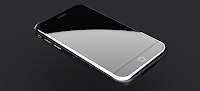
Rumor has it that the new iPhone 4G will be out somewhere around June or July 2010. It is said that the iPhone 4G will use the same processor that the iPad uses. The graphic processor will probably be an ARM Cortex-A9. Judging by the rumors, the iPhone 4G is more about design and less about performance. There also are some new iPhone 4G pictures out in the wild so check these out.


Thursday, February 4, 2010
South Park iPhone Theme
Free South Park iPhone Theme!

Check out this new South Park iPhone Theme and install it on your phone !
Free download for South Park iPhone Theme. If you're a South Park fan, download the free South Park iPhone Theme and customize your phone in a cool way. This theme contains a number of basic icons and 5 South Park Wallpapers. If you're having some trouble installing this theme check out the How to Install iPhone Themes tutorial on our site.
Make sure you check out the other themes and guides from the website and enjoy your South Park iPhone Theme !
DOWNLOAD NOW!Disney iPhone Theme
A cool Disney iPhone Theme for your iPhones. It's free to download !

Looking for a cool Disney iPhone Theme ? Download this nice customized Disney iPhone Theme for your phone. You have many icons with Disney characters from different cartoons, including Mickey Mouse, Little Mermaid, Pluto, Winnie the Pooh, Donald Duck, Lion King and many more. You can also change the wallpaper
If you need help on installing this Disney iPhone Theme you should check out our How to Install iPhone Themes tutorial. If you need further assistance do not hesitate to contact us. Enjoy this Disney iPhone Theme and have fun !
DOWNLOAD NOW!Wednesday, February 3, 2010
Miley Cyrus iPhone Theme
 A cool Miley Cyrus iPhone Theme for your iPhones.
Miley Cyrus iPhone theme for free ! Download it here and install it on your iPhone. If you need help on installing the theme you can check out our How to Install iPhone Themes Guide. Pretty simple transparent icons, looking nice on any Miley Cyrus Wallpaper you decide to use. This theme also includes many many icons so if you know how to tweak them check them out.
Feel free to check out the guides and iPhone themes available on our site. Have fun and enjoy the Miley Cyrus iPhone Theme !
DOWNLOAD NOW!Tuesday, February 2, 2010
Elegant iPhone Theme - Download
An Elegant iPhone Theme free to download !

Download for free a cool Elegant Iphone Theme. Black icons on a cool red background, includes many icons. Download the archive below.
If you're having trouble installing this iPhone theme check out the How to Install iPhone Themes tutorial.
DOWNLOAD NOW!Monday, January 11, 2010
How To Install iPhone Themes
How To Install iPhone Themes tutorial
Hello and welcome to this tutorial. In this guide you'll learn how to install iPhone themes on a jailbroken iPhone. It's very easy to do, so don't worry. This is what you'll need :
1. Download a theme on your PC, it will probably be a .zip or .rar archive. Extract your theme from the archive. A new folder will appear. We will use it later.
2. Connect to the internet using your iPhone. Open Cydia and install Winterboard.
3. Connect your iPhone to your PC via USB. Download and install iPhone Browser on your PC (freeware application from Google). Now run it and select "Goto Location"
from the upper tab, and : "Winterboard Themes". Like in the picture.

4. Now, from the PC, drag the folder which contains your theme files (the one from step 1.) to the iPhone Browser window, in the empty space (white side on the right). Like in the picture.
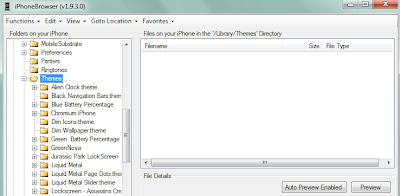
5. Open Winterboard from your iPhone. If you copied the folder correctly you can see it in the list. Select it, now exit Winterboard. After a few moments you can see your newly installed iPhone theme ! Congratulations.
If you have further questions or suggestions on how to install iPhone themes, please don't hesitate to contact us.
Hello and welcome to this tutorial. In this guide you'll learn how to install iPhone themes on a jailbroken iPhone. It's very easy to do, so don't worry. This is what you'll need :
- your iPhone
- iPhone Browser - freeware from Google. Very good software.
- Internet Connection for your iPhone
1. Download a theme on your PC, it will probably be a .zip or .rar archive. Extract your theme from the archive. A new folder will appear. We will use it later.
2. Connect to the internet using your iPhone. Open Cydia and install Winterboard.
3. Connect your iPhone to your PC via USB. Download and install iPhone Browser on your PC (freeware application from Google). Now run it and select "Goto Location"
from the upper tab, and : "Winterboard Themes". Like in the picture.

4. Now, from the PC, drag the folder which contains your theme files (the one from step 1.) to the iPhone Browser window, in the empty space (white side on the right). Like in the picture.

If you have further questions or suggestions on how to install iPhone themes, please don't hesitate to contact us.
Wednesday, December 30, 2009
Cool iPhone Apps - Best Applications
Cool iPhone Apps - Best Applications
In this post you'll find some of the most interesting, useful and cool iPhone applications and also some of the best apps realeased to date along with a short description. This is not a preferential list neither are the applications written in a hyerarchycal manner. We're also waiting for your suggestions via mail or comments, to help us expand this list.
List of cool iPhone apps:
In this post you'll find some of the most interesting, useful and cool iPhone applications and also some of the best apps realeased to date along with a short description. This is not a preferential list neither are the applications written in a hyerarchycal manner. We're also waiting for your suggestions via mail or comments, to help us expand this list.
List of cool iPhone apps:
- iTranslate (Free) - Useful application, over a dozen different languages.
- Crazy Machines ($2.99) - Build machines using household items. Entertaining game for the iPhone.
- Pandora (Free) - Online music player.
- Tv.com (Free) - Stream full episodes of many shows.
- Shazam (Free) - Record an unknown tune from the radio and Shazam will identify it from a library of millions.
- Pocket God (0.79 EUR) - This is an entertaining 'god game' for the iPhone. Control the lives of island inhabitants in fun ways.
- QuickOffice (7.99 EUR) - Office Suite for the iPhone. QuickWord, QuickExcel and Quicksheet.
- LogMeIn Ignition (23.99 EUR) - This is a cool application for remotely accessing your desktop computer from faraway.
- I am T-Pain (2.39 EUR) - Alter your voice in real-time with this cool application. You could be the next best T-Pain.
- BeejiveIM (4.99 EUR) - Instant messaging application which allows you to connect and log into your IM accounts and chat with your friends and exchange files. Pretty cool and easy to use. One of the best applications out there.
Friday, December 18, 2009
iPhone video capture recording software
How to install video capture software on the iPhone !
Questions like "How can I record videos on the iPhone ?" or "Where is the iPhone video capture program?" are quite common amongst new iPhone users. In this guide we will show you how to install free video recording software to your iPhone.
What you need:
Steps to install video capture (recording) program on your iPhone:
Now press "Confirm". Cycorder is now installing. After installation your iPhone will restart.
Congratulations! You now have a video recording program on the iPhone !
Questions like "How can I record videos on the iPhone ?" or "Where is the iPhone video capture program?" are quite common amongst new iPhone users. In this guide we will show you how to install free video recording software to your iPhone.
What you need:
- Jailbroken iPhone
- Internet connection
Steps to install video capture (recording) program on your iPhone:
- Connect your iPhone to the Internet. Usually via Wi-Fi. (Settings - Wi-Fi)
- Open Cydia from your iPhone menu.
- Select "Sections" from the bottom tabs. Now scroll for "Multimedia" and finally "Cycorder".
- (Sections - Multimedia - Cycorder)
- After you selected Cycorder, press the install button from the upper right corner of the screen.
Now press "Confirm". Cycorder is now installing. After installation your iPhone will restart.
Congratulations! You now have a video recording program on the iPhone !
Tuesday, December 15, 2009
iPhone SMS Ringtone - Text Message Ringtone
iPhone sms ringtone - How to install your own iPhone Text Message Ringtone
In this guide we will show you how to install your own sms ringtone on the iPhone.
In order to do this, you need the following :
1. Open up iTunes.
2. Select: File - Add File to Library -> browse for your desired ringtone.
3. The selected ringtone will be added into the Music Library.
4. Now go to : Edit - Preferences - General (first upper tab), click on the "Import Settings" button. For the "Import using:" option, select "Aiff Encoder". Click Ok. Click Ok.

5. Now, right click on your ringtone from the music library. Select "Create AIFF version". This will convert your ringtone to the aiff extension. The new file will have the same name, and will appear under your original file.
6. Right click on the second file and select : "Show in Windows Explorer".
7. This file has the aiff extension. All you need to do is rename the file from the original extension to the .caf extension. For example if your ringtone's name is : Ringtone.aiff, change it to Ringtone.caf.
8. Now, connect your iPhone to your PC via the USB cable.
9. Open up iPhone Browser, select the "Go To Location" tab, and select "UI Sounds".
10. Here's a tricky part. There are 6 sms-received files in the UI Sounds folder. sms-received1.caf to sms-received6.caf. You will have to replace one original file with your own. Example: Right click on sms-received1.caf and select "Replace File". Browse to "Ringtone.caf" (the file renamed at step 7), and select Open.
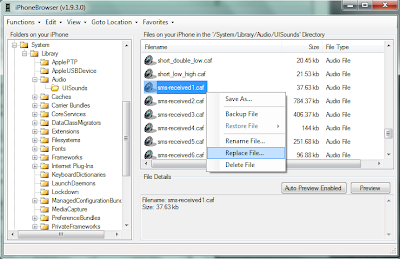
Finally, that's it. Get your iPhone and go to "Settings" -> "Sounds" -> "New Text Message" and try the ringtones. The names of the ringtones are unchanged so you have to check all 6 and find the one you installed.
I hope the "iPhone SMS Ringtone" guide helped you.
In this guide we will show you how to install your own sms ringtone on the iPhone.
In order to do this, you need the following :
- An iPhone
- iTunes
- Your desired ringtone
- iPhone Browser - Freeware software developed by Google. Easy to use.
1. Open up iTunes.
2. Select: File - Add File to Library -> browse for your desired ringtone.
3. The selected ringtone will be added into the Music Library.
4. Now go to : Edit - Preferences - General (first upper tab), click on the "Import Settings" button. For the "Import using:" option, select "Aiff Encoder". Click Ok. Click Ok.

6. Right click on the second file and select : "Show in Windows Explorer".
7. This file has the aiff extension. All you need to do is rename the file from the original extension to the .caf extension. For example if your ringtone's name is : Ringtone.aiff, change it to Ringtone.caf.
8. Now, connect your iPhone to your PC via the USB cable.
9. Open up iPhone Browser, select the "Go To Location" tab, and select "UI Sounds".
10. Here's a tricky part. There are 6 sms-received files in the UI Sounds folder. sms-received1.caf to sms-received6.caf. You will have to replace one original file with your own. Example: Right click on sms-received1.caf and select "Replace File". Browse to "Ringtone.caf" (the file renamed at step 7), and select Open.

I hope the "iPhone SMS Ringtone" guide helped you.
Sunday, August 9, 2009
O2 to lose iPhone exclusive right

O2 is set to lose the exclusive right as the mobile network for the iPhone in the UK on 9 Oct 2009, according to reports filtering out across the web.
A website called Mobile Entertainment is claiming to have seen documentation stating that O2 will officially end its exclusivity on this date. According to Mobile Entertainment, O2 has the rights to sell the device until 2012; but its period as the exclusive seller is only for two years.
If the 9 Oct date is correct for the U.K. it may also mark the date when other network providers, such as AT&T, also lose the exclusive right as the network provider for the iPhone in their respective territories.